
Guide
How to clean up your Downloads folder on a Mac
A Finder-only method that works on any Mac, plus a faster way for people who download a lot.
A Downloads folder fills up quietly: a brief here, a font there, three versions of the same export. Here’s a method that works with nothing but Finder, followed by a much faster way if you clear Downloads often.
Clean up Downloads with Finder
Make the mess visible
Open Downloads in Finder (⌥⌘L) and switch to List view (⌘2). Control-click the column headers and turn on Date Added, then sort by it. The newest arrivals rise to the top, and the oldest files, the ones you’ve forgotten, sink to the bottom.
Group by kind
Choose View ▸ Use Groups, then View ▸ Group By ▸ Kind. Images, PDFs, archives and installers each get their own block, so you can deal with one type at a time. Installers (
.dmg,.pkg) are usually safe to trash once the app is installed.Make one folder per project
Before you move anything, decide where things live. One folder per client or project works better than folders per file type or per month, because that’s how you’ll look for things later. Inside each project, keep the subfolders you already use: Links, Assets, Renders, Deliverables.
Look before you move
Select a file and press space for Quick Look. Use the arrow keys to step through files without opening any of them.
Move, don’t copy
Dragging a file to a folder on the same disk moves it. To move with the keyboard, copy with ⌘C, then press ⌥⌘V in the destination: Move Item Here. When dragging to another drive, hold ⌘ to move instead of copy.
Don’t rename linked files
If a file is placed in After Effects, Illustrator, Premiere or InDesign, keep its name. Those apps track linked files by name and path. Move a file and you relink once by pointing at the new folder. Rename it, and you’re hunting for which file used to be which.
Deal with duplicates carefully
Download the same file twice and many browsers add a number, like
name (1).ext. Search Downloads for(1)to find them, but compare each pair with Quick Look before trashing one: the same name doesn’t always mean the same file.Archive what’s finished
Old projects don’t need to live on your Mac. Copy the whole project folder to an external drive, check that the copy opens, and only then delete the original. Keep the folder structure identical, so links still resolve if you ever bring it back.
This works, but it’s slow: every file is a drag and a hunt through folders, and a few hundred downloads can take an afternoon.
The faster way: one key per file
Sorting Room is a Mac app that turns this into a deck of cards. You set up your projects once. Then each file in Downloads appears as a card, and you press a number to send it to a project.
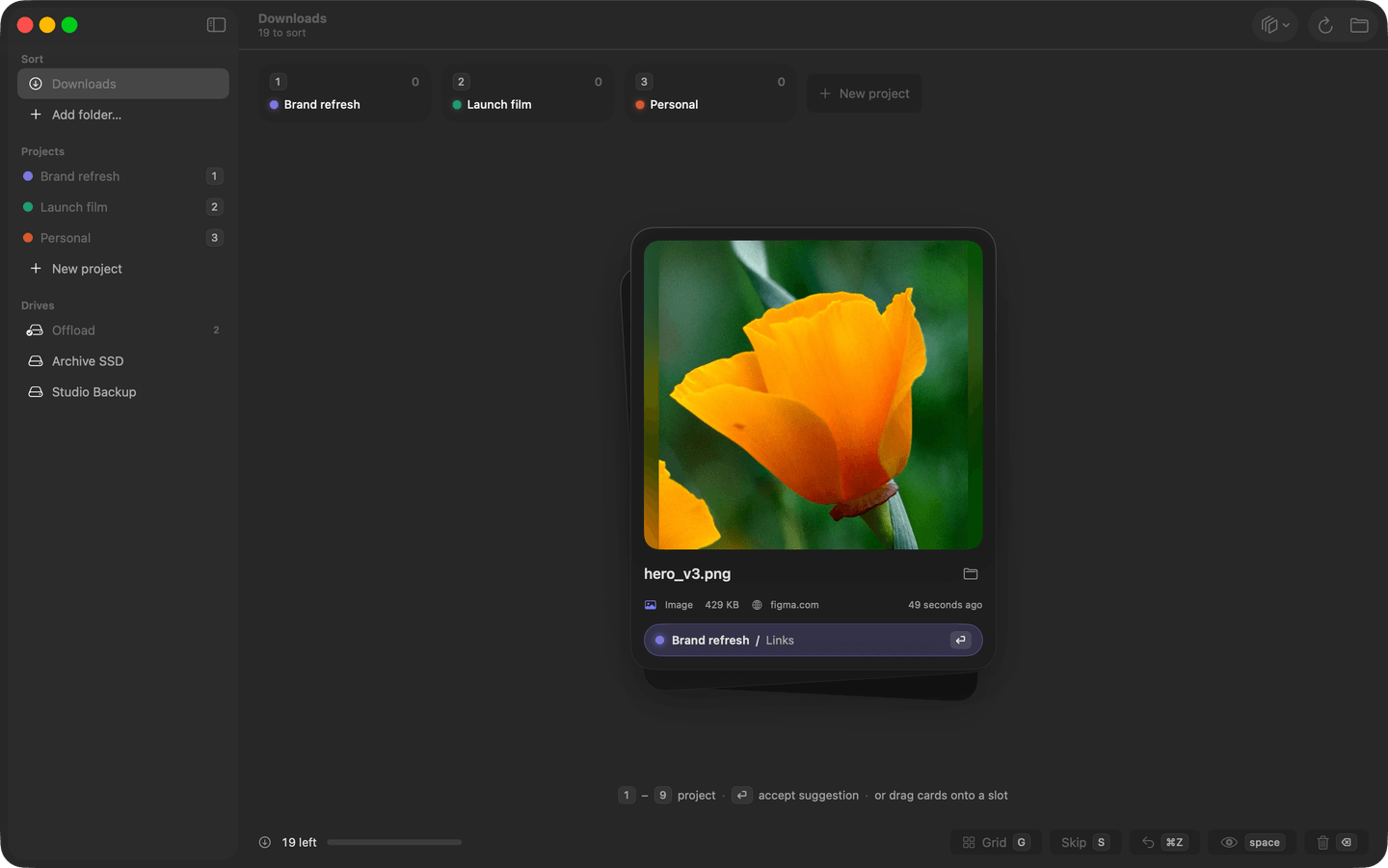
- 1–9 files a card into a project, Return accepts the suggestion, Delete sends it to the Trash, and Command Z undoes any of it.
- It learns where things go from the website a file came from and the words in its name, then suggests the project next time.
- It never renames a file, so links in your creative apps keep working. When a name clashes, you choose: Skip, Replace, or Put in
_conflicts. - Exact duplicates are detected by content, not just by name.
- Finished projects can be moved to an external drive, with every file checksum-verified before the original is removed.
Keeping Downloads clear
Keep it from filling up again
Create a Smart Folder (File ▸ New Smart Folder) that shows Downloads items added more than a month ago, and check it weekly. You can also change where your browser saves files; in Safari it’s Settings ▸ General ▸ File download location.
Little and often
Clearing twenty files takes a minute. Clearing two thousand takes a weekend. With Sorting Room, the menu bar icon counts the new files waiting in each folder, so you know when it’s time for a quick sort.